 File DateFile Date
FILEDATE allows file dates and times to be modified.
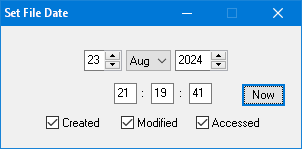
Three date fields are assocated with each file: a creation date, a last modified date, and a last accessed date. These can be modified individually or collectively by selecting the appropriate check boxes. Different times for the three fields can be set by modifying each individually.
Set the required date and time, select the fields to be modified and drop the file(s) into the Window. The Now button presets the current time.
Current file dates and times may be viewed by right clicking a file and selecting its Properties.
You may encounter files that appear to have been created after they were last modified. This seemingly illogical state occurs when files are automatically assigned a new creation date as they are copied.
There are inconsistencies between different versions of Windows and different filing systems which can on occasions cause displayed times to be one hour adrift when the set date is in the opposite phase of daylight saving time. NTFS formatted drives store file times in UTC which is then adjusted to local time for display. This varying time difference can cause problems, particularly with Windows XP. On the other hand, FAT formatted drives store file times as local times, which ought to be straightforward, and yet Windows 10 can still get it wrong.
Current version 9 August 2024. FILEDATE.ZIP