 VIEWVIEW
This is the latest incarnation of Wayne Stahnke's VIEW program. While primarily intended for viewing and editing reconstructed punch matrix files, other file types may be viewed by applying an appropriate scaling factor. VIEW will run under most 32-bit versions of Windows (but not Windows 7) or under 64-bit versions using DOSBox.
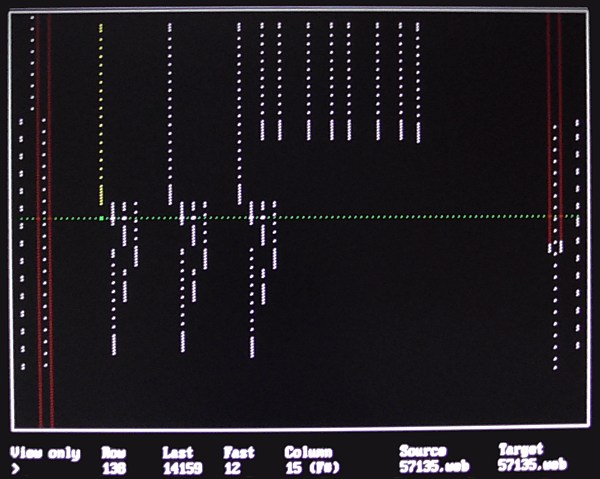
(red denotes the effective length of lock and cancel tracks)
Current version 11.35 (April 2020): VIEW1135.ZIP, 611,950 bytes.
The ZIP file includes a wide range of sample WEB/ANN files.
An editing session is invoked by a DOS command line of the form
view <source>[.<ext>][ <target>[.<ext>]][ /n:<N>][ /d:<D>][ /a:<A>]source [and target] filenames
The default extension is .WEB and the default target name is identical to the source name. If a source file with the .WEB extension does not exist the default extension is .BAR. Source files and target files are assumed to be in the standard roll file format unless the file extension is .MID, which specifies a Type 0 MIDI file.
/n: and /d: row number scaling factor
The operator can scale the number of rows in the performance with the use of the optional /n:<N> and /d:<D> keywords. When these keywords are used, each row number is multiplied by the numerator <N> and divided by the denominator <D> using integer division (without remainder) as the performance is loaded.
/a: perforation length adjustment
The operator can change the length of each perforation by using the optional /a:<A> keyword. When this keyword is used the length of each perforation is increased by an additional <A> rows (after scaling) if <A> is positive. The length is decreased if <A> is negative, but not to less than one punch.
| Key sequence | Function | Key sequence | Function |
|---|---|---|---|
| <end> | Jump to end | <home> | Jump to start |
| <down arrow> | Slow advance | <up arrow> | Slow rewind |
| <ctrl-down arrow> | Fast advance | <ctrl-up arrow> | Fast rewind |
| <enter> | Fast advance | <tab> | Select edit mode |
| <left arrow> | Column on left | <right arrow> | Column on right |
| <ctrl-left arrow> | End of selection | <ctrl-right arrow> | End of performance |
| <page down> | Search forward | <page up> | Search backward |
| <esc><esc> | Quit (no changes) | <esc><enter> | End (save changes) |
| The following commands are available when not editing lyric or text | |||
| f<n><enter> | Set fast to <n> | r<n><enter> | Set row to <n> |
| r+<n><enter> | Advance <n> rows | r-<n><enter> | Rewind <n> rows |
| c<n><enter> | Set column to <n> | ||
| The following commands are available only when editing notes | |||
| <ctrl-delete> | Delete single row | <ctrl-insert> | Insert single row |
| d<n><enter> | Delete <n> rows | i<n><enter> | Insert <n> rows |
| <space> | Add/remove punch | ||
| Depress <enter> to exit, <F1> to return to this screen | |||
When I launch View, it comes up in View Only mode. I use View only to edit, so I must change to Edit Notes mode by depressing the "tab" key every time I use View. How can I eliminate this step?
Beginning with V11.20, View allows the operator to select the edit mode on launch by using the /mode: keyword in VIEW.INI. These arguments are supported:
/mode:view (or omit this line) selects View Only mode /mode:notes selects in Edit Notes mode /mode:lyric selects in Edit Lyric mode /mode:text selects in Edit Text mode
How can View help me find and fix illegal lands?
Starting with V11.19, View allows the operator to search either forward or backward for illegal lands in the note field. (An illegal land is a land whose length is equal to the note field webbing cadence (/cadence:); it is too long to reliably keep the key depressed, and too short to allow the note to repeat.) To do this, View provides two new commands:
<alt page-down>: search forward for the next incidence of an illegal land,
<alt-page up>: search backward for the next instance of an illegal land.
After searching, View places the cursor at the start of the next illegal land. The operator can then fix the illegal land using View's editing capabilities.
How do I use View to resolve the differences between two roll images that are almost the same, but not quite?
Beginning with V11.14, View supports editing two roll images at the same time. This can be used to resolve the differences between two similar, but slightly different, roll images. Launch View with the filenames to be edited, separated by a comma. For example:
VIEW 68283A,68283B
will allow editing 68283A.WEB and 68283B.WEB (both of which are included in this release). When editing two roll images, View provides three new commands:
<ctrl-tab> or <F2>: Alternate the editing screen between the roll images,
<ctrl-page down>: search forward and display the next row in which the file images differ,
<ctrl-page up>: search backward and display the next row in which the file images differ.
View also allows specifying two target filenames or annotation filenames separated by a comma.
The "help" screen appears automatically whenever I start View. At first this was a convenience, but now that I have memorized all of the commands I no longer need to see it at the start of every edit session. How do I skip over the "help" screen on startup?
You can skip over the startup help screen by changing the line /help:on to /help:off in VIEW.INI. After doing this, you will still be able to invoke the help screen at any time by depressing the F1 key.
Note that when the help screen is disabled, the move to the editing screen takes place automatically after ½ second. To retain the opening (signon) screen for examination, depress the enter key twice (rather than only once as in normal operation) at the end of the command line that invokes View.
What files do I need to run View?
You need to have the following files all present in a single subdirectory or folder: VIEW.EXE, VIEW.FON, VIEW.INI. It is convenient to put VIEW.FAQ (this file) in the same subdirectory or folder.
In addition, you may want to use a .TAB file to control the mapping. This optional file allows you to map any column onto any output channel. View is configured by the sample VIEW.INI file provided to use MIDI.TAB.
How do I configure the output of View?
The procedure for configuring the View output is the same as the one used to configure Audition, with one exception. View does not require the use of a TAB file, so the keyword /mapping: can be omitted from VIEW.INI. If this is done, View selects a straight-through mapping for the parallel output, and a straight-through mapping of the playing notes (the number of these varies from roll to roll, and is selected by View) for MIDI output.
What types of rolls are supported by View?
The following /roll_type: and /roll_class: combinations (defined in the associated .ANN file) are supported:
| Type | Class | Description |
|---|---|---|
| (any) | 88 | 88-note |
| Aeolian | Grand | Aeolian Grand |
| Ampico | A/B | Ampico |
| Angelus/Artrio/Artrio-Angelus | Early/Late | Artrio-Angelus |
| Apollo/Artecho/Celco | (any) | Artecho |
| Duo-Art | Early/Late/British | Duo-Art |
| Welte-Mignon | Red/T-100/T100 | Welte-Mignon "Red" |
| Welte-Mignon | Green/T-98/T98 | Welte-Mignon "Green" |
| Welte-Mignon | Licensee | Welte-Mignon Licensee |
| Hupfeld | Phonola | Phonola |
| Recordo | A/B/C | Recordo |
| Aeolian-Skinner | Semi-Automatic | Hammond |
| Coinola | C | Coinola C |
| Cremona | M | Cremona M |
| Moller | Artiste | Moller Artiste |
| Wurlitzer | 165 | Wurlitzer 165 |
How do I play in real time?
View contains an undocumented feature that allows real-time play. Locate the row at which you want to start playing and depress the F12 key. The playing will start at the selected row. Depress the escape key to quit, or depress the enter key to update the selected row to the point in the roll that corresponds to what you are hearing.
Note: not all Windows systems support real-time playing.
I am using a SCSI hard disk interface. When I invoke View the computer freezes, and the only way to recover is to reset. What is the problem?
Some SCSI interface boards (especially Adaptec boards) use base address 0x330, which is the default base address for the MPU-401 MIDI interface board. View communicates with the I/O ports at base address 0x330, and if your SCSI interface resides at that address it will be disabled. To test for this replace /sound:on by /sound:off in the VIEW.INI file. If this solves the problem, you have three options:
- Operate with sound off,
- Move the base address of the SCSI interface board, or
- Update VIEW.INI to contain the correct base address of your MPU-401 interface board (following the keyword /mpu401:).
Why do I find too many empty rows at the end of the roll after I use the /a keyword?
When the argument of the /a keyword is positive, empty rows are added to the roll equal in number to the argument; this provides the space required for the additional length. When the argument is negative the total number of rows does not change. However, in both cases you may (or may not) have more empty rows at the end of the roll than before, depending on the nature of the perforations near the end.
It is always good to check the end of a roll after using the /a keyword and remove superfluous empty rows by hand, in the interest of tidiness.
What is the maximum number of columns supported by View?
View supports up to 240 columns. This is adequate for all piano rolls and organ rolls such as Wurlitzer (105 columns), Aeolian (116), Skinner (120), Estey (125), Moller Artiste (133), Welte (150), Aeolian Duo-Art (176), and Austin (236).
I want to use View to load a music roll image in MIDI file format. How do column numbers in View correspond to MIDI channels and notes?
Columns 0-112 in View are mapped into MIDI Channel 1, Notes 15-127; this mapping supports a total of 113 columns, adequate for all known types of piano rolls and many other music rolls as well. For rolls requiring more than 113 columns, Columns 113-239 are mapped into Channel 2, Notes 0-126.
The End of Selection mark is mapped into Channel 1, Note 13, and the End of Performance mark is mapped into Channel 1, Note 14.
What is the purpose of the unusual mapping of columns to MIDI channels and notes?
One of the principal uses of View is to prepare a MIDI file for perforating as a standard piano roll (11¼ inches wide, 9 columns/inch). The mapping given above allows MIDI files to be imported into View without shifting the notes.
For example, middle C is note 60 in a MIDI file. The mapping places this into column 45, which also corresponds to middle C. Thus the arranger can go back and forth between .MID files and .WEB files without complications.
What does the /pair: keyword do?
A bass theme or treble theme is represented in the disk file as a single column. Setting /pair:on causes View to display each theme perforation in an adjacent column pair in the familiar "snakebite" pattern. Setting /pair:off causes the themes to be displayed in single columns.
Note that when the /pair: keyword is on, the paired theme column cannot be edited. When the keyword is off, any column may be edited.